
Cloudflare Turnstile is available in Quform 2.17.0 or later.
Add a reCAPTCHA element to the form.
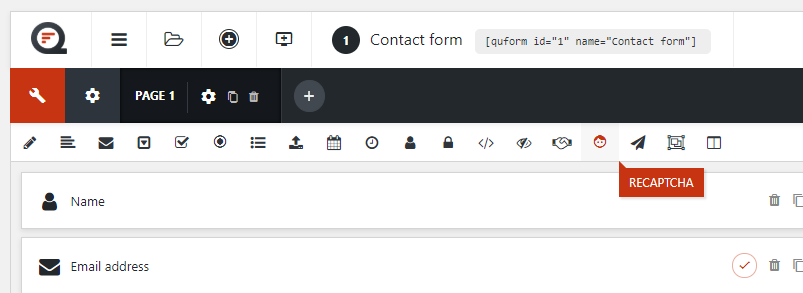
Go to the settings for it.
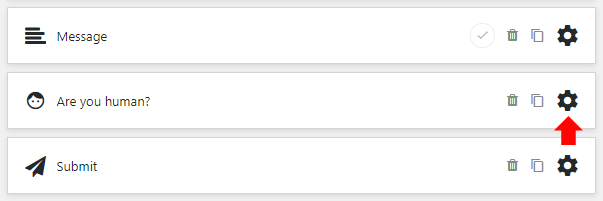
At the Provider option, choose Cloudflare Turnstile.

To get your API keys, sign in to the Cloudflare dashboard and open Turnstile. Choose Add widget, enter a widget name, and add the hostname where your form will be used, such as example.com.
Choose a widget mode:
- Managed: Cloudflare determines whether the visitor needs to interact with the widget.
- Non-interactive: The widget is displayed, but the visitor does not need to interact with it.
- Invisible: The widget is hidden and the visitor does not need to interact with it.
If you are unsure, choose Managed. Create the widget.
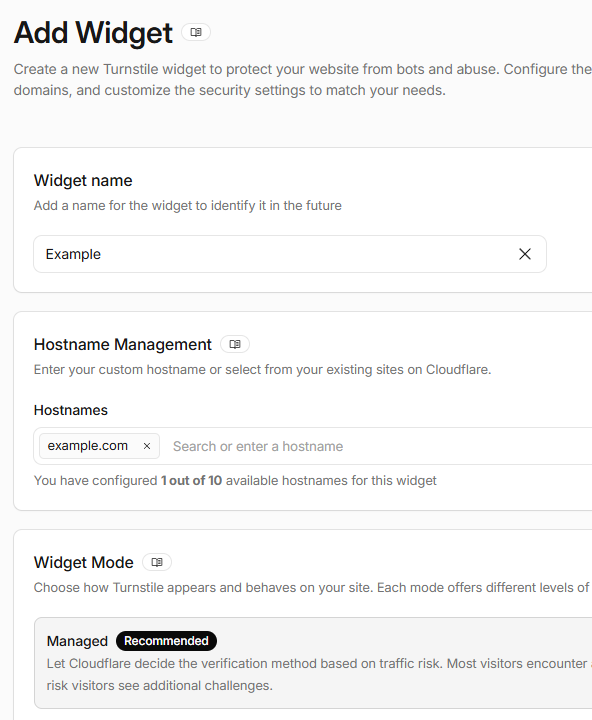
Copy the widget’s Site key and Secret key.
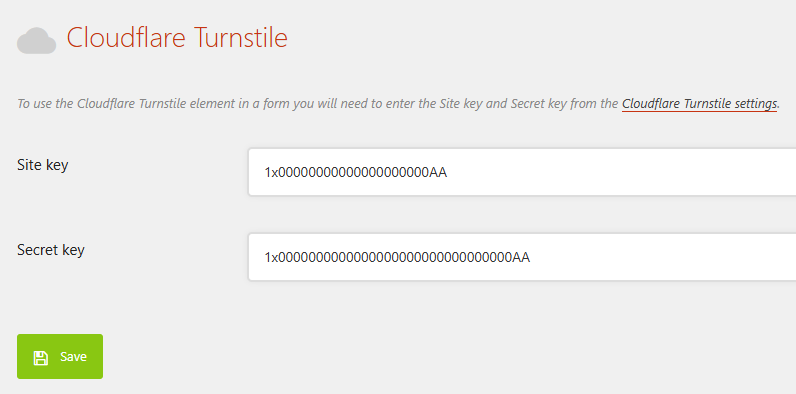
Once you have the keys, go to the Forms → Settings → reCAPTCHA page. Under Cloudflare Turnstile, paste them into the Site key and Secret key fields, then save the settings.
Return to the reCAPTCHA element settings in your form. If your version has an Appearance option, configure it to match your widget mode:
- For Managed or Non-interactive keys, you can choose either Always visible or Hidden unless interaction is required.
- For Invisible keys, choose Hidden unless interaction is required.
In older versions of Quform, choose Invisible at the Size option when using Invisible keys.
Configure the other settings if desired, then save the element settings and save the form.
Open the page containing your form and submit a test entry to check that Turnstile is working.